

Use this guide to compare Cyber Monday smart home deals and choose devices that fit your home, existing equipment, and budget. It is for shoppers who are new to smart home products as well as people adding to an existing setup. Allow 1–2 hours to check compatibility, compare prices, and review return and security details before buying.

Get the little things that make your day delivered free with Prime
- Fast, free delivery on millions of items
- Prime Video, Amazon Music and more included
- Member-only deals all year
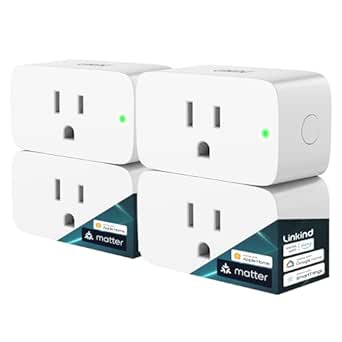
Linkind Matter Smart Plug, Work with Apple Home, Alexa, Siri, Google Home
- ✔ Protocol: Matter over Wi-Fi
- ✔ Wi-Fi: 2.4 GHz only; IPv6 required
- ✔ Maximum rating: 15 A / 1800 W

Amazon Echo Show 5 Smart Display with Alexa, Charcoal
- ✔ Display: 5.5-inch touchscreen
- ✔ Camera: 2 MP with built-in shutter
- ✔ Dimensions: 5.8 × 3.6 × 3.2 in
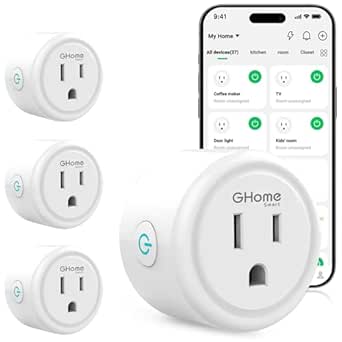
GHome Smart Plug, WiFi Smart Plugs that Work with Alexa and Google Home
- ✔ Connectivity: Wi-Fi and Bluetooth connection options
- ✔ Wi-Fi: 2.4 GHz only
- ✔ Current rating: 10 A
Difficulty: Beginner | Time: 1–2 hours
What You’ll Need
Tools & Materials:
- Phone or computer with internet access
- A list of your current smart home devices and their companion apps
- Your router or Wi-Fi network details, if available
- A budget and a short list of tasks you want to automate
Knowledge:
- Basic familiarity with your home Wi-Fi and smartphone
- The main rooms or routines where you want smart home devices
Decide what you want a device to do before comparing discounts. Examples include controlling lights by voice, checking a door remotely, or automating heating. Do not share your Wi-Fi password, account credentials, or device serial numbers with sellers in public deal discussions.
Linkind Matter Smart Plug, Work with Apple Home, Alexa, Siri, Google Home
For a Cyber Monday smart home refresh, the Linkind Matter Smart Plug is the most adaptable first purchase in this group. It can join Apple Home, Alexa, Google Home, or SmartThings, so we have more room to choose or change the control platform than with the Alexa-centered Echo Show 5 or the Alexa-and-Google GHome plug. Matter’s local network control is useful when internet service drops: devices already set up on the LAN can still communicate locally, although remote control still depends on connectivity.That flexibility has a setup condition. Major platforms require a Matter-certified controller, such as a supported Echo, HomePod, Nest, or SmartThings hub; AiDot is the stated alternative without a separate hub. Linkind also requires 2.4 GHz Wi-Fi and IPv6. Its compact form and 15 A / 1800 W rating make it suitable for many everyday plug-in devices, but this is an on/off outlet with schedules, not a way to dim lights or monitor detailed energy use. Compared with GHome, it brings wider ecosystem support and a higher stated capacity, while asking more of the network and controller setup.
Pros:
- Works with several major smart home platforms through Matter
- Local network control can continue during an internet outage after setup
- 15 A / 1800 W capacity and compact form factor
- Supports timers, schedules, remote control, and voice commands
Cons:
- Major platform use requires a compatible Matter controller
- Requires 2.4 GHz Wi-Fi and IPv6
- Controls power on or off rather than dimming or reporting detailed energy use
Best for: Households with a Matter controller that want one scheduled outlet to fit Apple Home, Alexa, Google Home, or SmartThings.
Not ideal for: Shoppers who want a no-hub start in a major platform, use a network without IPv6, or need dimming or detailed energy monitoring.
Bottom line: We rank Linkind first for its broadest ecosystem fit and local control, provided our network and controller meet its setup requirements.
“We rank Linkind first for its broadest ecosystem fit and local control, provided our network and controller meet its setup requirements.”
Amazon Echo Show 5 Smart Display with Alexa, Charcoal
The Echo Show 5 makes the most sense when we want a small screen as part of the smart home, rather than another outlet. Its 5.5-inch touchscreen can show information and photos, while Alexa provides voice control for compatible devices. A built-in camera enables video calls and viewing compatible cameras, and a physical shutter plus microphone and camera controls give us ways to limit those functions. Unlike either plug, it can serve as a visible countertop or bedside control point.Compared with Linkind’s cross-platform Matter approach, Echo Show 5 concentrates on Alexa and screen-based interaction. That brings more kinds of everyday use into one device, but it is a less natural fit for a household centered on Apple Home or Google Home. Its compact size is convenient, though the 5.5-inch display and 1.75-inch speaker are modest; buyers seeking a room-filling display or sound system should look elsewhere. Some skills and services may require subscriptions or fees, and its product details list a limitation around ad-hoc or peer-to-peer Wi-Fi networks. We place it behind Linkind because it is a richer single device but a narrower ecosystem bet.
Pros:
- Combines a 5.5-inch touchscreen with Alexa voice control
- Built-in camera supports video calls and compatible camera viewing
- Camera shutter and microphone/camera off control
- Can control compatible smart home devices and display photos
Cons:
- Centered on Alexa rather than broad Matter platform choice
- Small screen and single 1.75-inch speaker limit room-scale use
- Some skills and services may involve additional fees
Best for: Alexa households that want a compact screen for voice control, video calls, compatible camera viewing, and everyday glanceable information.
Not ideal for: Buyers who want a screen-free automation starter, prefer another assistant ecosystem, or need a larger display or stronger speaker.
Bottom line: We choose Echo Show 5 when a compact Alexa screen is more valuable than the broader outlet compatibility offered by Linkind.
“We choose Echo Show 5 when a compact Alexa screen is more valuable than the broader outlet compatibility offered by Linkind.”
GHome Smart Plug, WiFi Smart Plugs that Work with Alexa and Google Home
The GHome Smart Plug is the straightforward choice when our needs are limited to switching a lamp, fan, or similar appliance on a schedule. The product supports Alexa and Google Assistant voice commands, app control from away, timers, recurring or randomized schedules, and shared access. Its Bluetooth or Wi-Fi connection options are presented as a way to help with connection, but the plug still relies on a stable 2.4 GHz Wi-Fi network.Its key tradeoff is the narrower setup path. GHome says we must first add the plug to the GHome app, Smart Life, or Tuya before linking Alexa or Google Home. That is more app-dependent than Linkind’s Matter route, and the listed ecosystem support is less broad. It also has a lower stated 10 A / 1200 W rating than Linkind, so we should check appliance requirements rather than assume the outlets are equivalent. Against the Echo Show 5, GHome is a dedicated outlet and lacks a screen, camera, or display functions; in return, it directly addresses routine appliance switching without asking us to add a smart display. It is a focused pick, not the most expandable one.
Pros:
- Supports Alexa and Google Assistant voice control
- Remote app control, schedules, timers, and group control
- Family sharing is supported through the app
- No hub is required according to the product listing
Cons:
- Requires initial connection through GHome, Smart Life, or Tuya app
- Supports 2.4 GHz Wi-Fi only
- 10 A / 1200 W rating is lower than Linkind’s stated capacity
Best for: Alexa or Google Assistant users who want app-based schedules and remote on/off control for compatible indoor appliances.
Not ideal for: Households that want Apple Home, Matter support, a high-capacity outlet, or fewer app steps during setup.
Bottom line: We recommend GHome for basic scheduled switching in Alexa or Google homes when its app setup and lower capacity suit the appliance.
“We recommend GHome for basic scheduled switching in Alexa or Google homes when its app setup and lower capacity suit the appliance.”
As an Amazon Associate we earn from qualifying purchases.
Before You Start
Cyber Monday prices and stock can change quickly. Set a spending limit before shopping, and compare the price with the product’s recent or regular price where possible. A discount label alone does not show whether a deal is good value. Check the seller, delivery date, return window, warranty, and whether the item is new, refurbished, or a bundle with a subscription.
Smart devices may depend on a particular Wi-Fi band, hub, phone operating system, or voice assistant. Compatibility can vary by model and region. Confirm the exact model number against the manufacturer’s current requirements before buying.
Step-by-Step Instructions
Step 1: List the jobs you want devices to do
Write down up to three specific jobs for your smart home purchase. Make each job concrete, such as turning on a lamp at sunset, seeing who is at the front door, or adjusting a thermostat while away. Note the room, who will use the device, and whether you need remote access, voice control, or an automatic schedule.
Rank the jobs in order of importance. Start with one device that solves the top need rather than buying several products because they appear in a bundle. This keeps the comparison focused and makes it easier to judge whether the purchase is worth its price.
Tip: For cameras, locks, and sensors, think about placement, power, and who needs access before choosing a model.
Check: You have a short, ranked list of use cases and can explain what each device should do.
Step 2: Check your existing setup
Record the smart home platform or voice assistant you use, if any, such as Apple Home, Google Home, or Amazon Alexa. List your current hubs, router details you know, and the phone operating system used to set up devices. Check the manufacturer’s product page or support page for each candidate and confirm it supports the exact platform and requirements you have.
Look for requirements such as a separate hub, a specific Wi-Fi band, Bluetooth during setup, a paid service for key features, or a compatible phone app. Check whether the device works in your country and whether its core features remain available without a subscription.
Tip: Do not assume two products work together just because they use the same brand or wireless standard. Verify the specific model and the functions you need.
Check: Each shortlisted item has confirmed compatibility with your home network, phone, and desired smart home controls.
Step 3: Set a total spending limit
Choose the maximum amount you will spend across devices, required hubs, accessories, installation, and any subscription you plan to use. If you are buying more than one item, set a separate limit for each priority. Include recurring service costs over at least the first year so a low initial price does not hide a higher ongoing cost.
Decide which features justify paying more. For example, you might value local video storage or a physical control switch, while leaving out a premium finish or extra sensors. Keep the limit visible while comparing offers and do not raise it simply because a countdown timer is running.
Tip: Check whether a subscription is optional, what it unlocks, and how billing renews before adding it to your expected cost.
Check: You know the maximum total cost and which features you are willing to pay for.
Step 4: Compare deals for the exact model
Search the manufacturer’s site and reputable retailers for each shortlisted model. Match the full model number, included accessories, and product condition; similarly named versions may have different features. Compare the current offer with the usual price where reliable price history is available, and check whether the advertised savings depend on a coupon, membership, trade-in, or bundle.
Read the product listing for delivery costs, estimated arrival, seller identity, and return terms. Confirm whether returns are accepted after opening or setup, and note any restocking fee or short return period. Save the listing or receipt once you have selected an offer.
Tip: A bundle is useful only if you need its extra items. Compare its total cost with buying the main device alone.
Check: You can identify the exact model, seller, full cost, delivery estimate, and return terms for the offer you plan to buy.
Step 5: Review privacy and security features
Read the manufacturer’s privacy and security information before purchasing devices with microphones, cameras, location access, or entry controls. Check whether the product supports two-factor authentication, security updates, account permissions for household members, and a way to delete recordings or account data. Find out how long the manufacturer expects to support the device.
For cameras and doorbells, check where video is stored and who can view it. For locks, confirm how you can enter if the network or power fails, and whether you can manage access codes. Avoid products whose support, update, or data practices are unclear for the role you expect them to perform.
Tip: Choose a unique password for the device account and enable two-factor authentication when available.
Check: You understand what data the device collects, how to secure the account, and what happens if the internet or power is unavailable.
Step 6: Buy from the selected seller
Open the retailer’s product page and recheck the model number, condition, quantity, accessories, and total price at checkout. Confirm the seller is the retailer itself or a seller whose return and warranty terms you have reviewed. Remove add-ons you do not want, including trial subscriptions that may renew automatically.
Complete the order using the retailer’s normal checkout, then save the order confirmation and return deadline. If the price changes or the item sells out, return to your ranked list and compare the next suitable offer rather than choosing an incompatible substitute under time pressure.
Tip: Keep the packaging, labels, and included parts until you have tested the device and decided to keep it.
Check: The order confirmation shows the intended model and quantity, the expected total, and a delivery estimate.
Step 7: Set up and test the device safely
When the device arrives, inspect the package and compare its model number with your order. Install the official companion app from your phone’s app store, follow the manufacturer’s setup instructions, and install available firmware updates before relying on the device. Use a unique account password and enable two-factor authentication if offered.
Place cameras and microphones thoughtfully, review recording and notification settings, and grant only the permissions needed for the features you use. Test the device locally and remotely if remote access matters. Try the main routine or control several times, and check any fallback method such as a physical switch, key, or manual control.
Tip: For locks, alarms, and other safety or access devices, retain a reliable manual fallback and test it before depending on automation.
Check: The device appears in its app, performs the job you bought it for, receives updates, and has a working fallback where needed.
Common Mistakes to Avoid
- Buying a discounted device before checking platform or network compatibility. — Confirm the exact model’s current requirements and support for your phone, Wi-Fi, hub, and chosen smart home platform.
- Comparing only the discount percentage or advertised price. — Compare the full checkout cost, price history where available, included accessories, recurring fees, warranty, and return terms.
- Overlooking subscriptions or required hubs. — Read the feature and setup requirements, then include any required hub and first-year service costs in your budget.
- Leaving default account security and sharing settings in place. — Set a unique password, enable two-factor authentication, review household access, and limit permissions and recording to what you need.
Troubleshooting
Problem: The product page does not clearly state whether it works with your existing hub or assistant.
Solution: Search the manufacturer’s official compatibility list using the full model number. If the required integration is not confirmed, choose a model with clear support or contact the manufacturer before ordering.
Problem: The advertised deal price is missing at checkout.
Solution: Check whether a listed coupon, membership, or bundle condition applies, and verify that the exact model is still in your cart. Recalculate the total including shipping; skip the offer if its final price exceeds your limit.
Problem: The device cannot join your Wi-Fi during setup.
Solution: Check the device’s supported Wi-Fi band and setup requirements in its manual. Move it closer to the router, confirm the phone is on the required network, and follow the manufacturer’s restart or reset instructions.
Problem: A core feature requires a subscription after setup.
Solution: Review the plan details and renewal terms before starting a trial. If the feature is essential and the ongoing cost does not fit your budget, use the retailer’s return process within the stated window.
What Success Looks Like
You have purchased a device that fits a clearly defined need, works with your existing setup, and stays within your total budget. You have checked the seller, return terms, warranty, privacy details, and any recurring fees. After delivery, the device appears in its official app, completes the task you selected, and has the security settings and fallback controls you need.
Next Steps
Save the receipt, support information, and return deadline with your device records. Review app permissions and household access after setup, and install future firmware updates. If you add another device later, check compatibility and total cost against the setup you now have before buying.
Frequently Asked Questions
How can I tell whether a Cyber Monday smart home deal is good?
Compare the exact model’s current price with its usual price where dependable price history is available. Include shipping, required hubs, subscriptions, warranty, and return terms. Treat a large discount label as a prompt to check the details, not proof of value.
Should I buy a smart home bundle?
Buy a bundle when you need its included devices or accessories and the combined price is lower than suitable individual offers. Check that every item works with your platform and that no unwanted subscription or accessory is included.
Do all smart home devices work with Alexa, Google Home, or Apple Home?
No. Support varies by model and feature. Check the manufacturer’s current compatibility information for the exact model, and verify the specific controls you want, such as voice commands, routines, or notifications.
What should I check before buying a smart camera or doorbell?
Check power and mounting needs, Wi-Fi requirements, video storage, subscription costs, privacy controls, and account security. Confirm that the device covers the location you want to monitor and that you can manage who has access.
What if the device does not work with my home after delivery?
Check the setup instructions and compatibility requirements, then contact the manufacturer’s support if the problem continues. Keep the packaging and use the retailer’s return process before the deadline if the device cannot perform the job you bought it for.